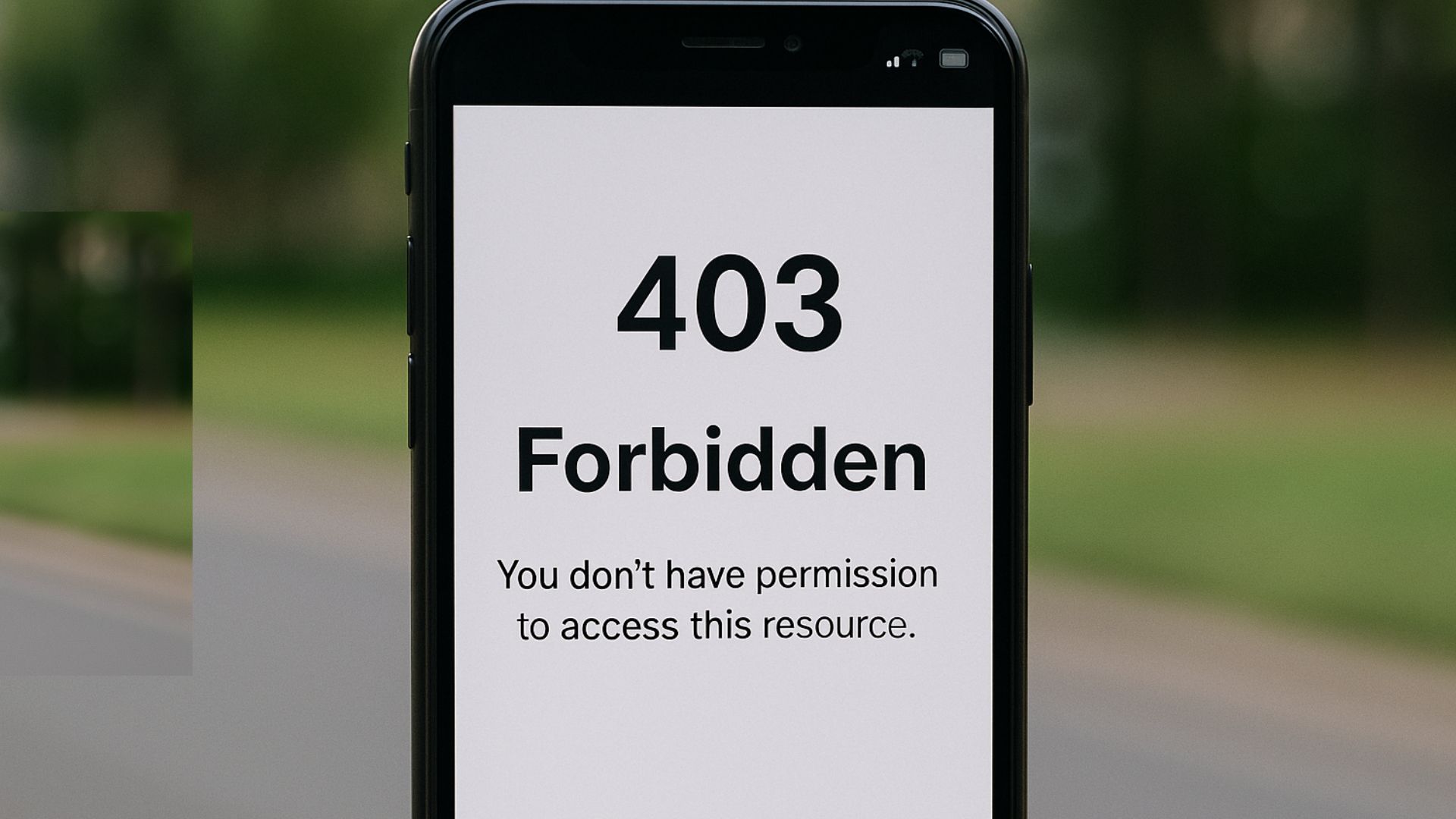
A “403 Forbidden” error on mobile usually means your server is blocking access due to permissions, security plugins, or IP filtering. Here’s how to troubleshoot and fix it step-by-step.

Why does my website show ‘403 Forbidden’ on mobile?
If your website works fine on desktop but shows a ‘403 Forbidden’ error on mobile, it usually means your server is actively blocking access to certain devices or user agents. This error is a permission issue—it means access is denied, but not because the page doesn’t exist.
Here’s a breakdown of what might be causing it—and how to resolve it.
Common Causes of 403 Errors on Mobile Devices
1. Security Plugins Blocking Mobile IPs or User Agents
Many WordPress security plugins (like Wordfence, iThemes Security, or All In One WP Security) have rules that block suspicious traffic. Sometimes, mobile users or browsers trigger these rules unintentionally.
How to fix:
- Temporarily disable security plugins
- Check if mobile devices can access the site
- Whitelist your mobile IP (or disable overly strict rules)
Tip: Use WhatIsMyIP on your phone to get your current IP.
2. Server-Side Firewall Rules (e.g., ModSecurity)
Some hosting providers run ModSecurity or other firewall tools that block requests based on device headers, user agents, or rate limits. These can mistakenly block mobile browsers.
What to do:
- Contact your hosting provider and ask if ModSecurity is enabled
- Request to check logs for recent 403 errors from mobile IPs
- Whitelist affected user agents or IP ranges if possible
3. .htaccess Rules Blocking Mobile Traffic
If you’ve modified your .htaccess file (or installed a plugin that did), you might have accidentally blocked access to certain user agents or IPs.
How to check:
- Connect via FTP or File Manager
- Open
.htaccessin the root directory - Look for lines like:
apacheCopyEditRewriteCond %{HTTP_USER_AGENT} ".*Mobile.*" [NC]
RewriteRule .* - [F,L]
How to fix:
- Remove or comment out any restrictive rules
- Save and clear your site cache
4. CDN or Firewall Issues (Cloudflare, Sucuri, etc.)
If you’re using a CDN or external firewall like Cloudflare, mobile-specific IP ranges or browser headers might be blocked due to overzealous settings.
What to do:
- Log into your CDN dashboard
- Check Firewall > Events to see if requests were blocked
- Lower your security level or add mobile user agents to the allowlist
5. File or Directory Permissions
Your site may work on desktop because of different caching behavior, but on mobile, a direct access attempt might fail if file permissions are incorrect.
What to do:
- Use your hosting panel to check file and folder permissions
- Recommended permissions:
- Files:
644 - Folders:
755
- Files:
- Fix permissions via FTP or contact your host
6. Caching or Redirect Conflicts
Some caching or redirection plugins (like WP Rocket or Redirection) may serve a different version of your site to mobile users. If that version is pointing to a restricted resource, a 403 can occur.
What to do:
- Clear your cache (both site and browser)
- Disable mobile-specific caching temporarily
- Use Chrome DevTools > Device Mode to simulate mobile and inspect network errors
Quick Troubleshooting Checklist
- Disable WordPress security plugins temporarily
- Check
.htaccessrules for blocks - Review firewall/CDN logs (e.g., Cloudflare)
- Ensure correct file/folder permissions
- Turn off mobile-specific redirects or cache
- Contact your host to check server logs for 403 errors
Real Example
We helped a client whose website worked on desktop but showed a 403 error on mobile. The cause? A security plugin flagged mobile Chrome’s user agent as a bot. Whitelisting that user agent fixed the issue instantly.
How Socinova Can Help
At Socinova, we help businesses maintain fast, secure, and accessible websites—on all devices. If your mobile users are running into errors like 403 Forbidden, we can audit your site setup, clean up your configuration, and restore full access quickly.
Don’t lose mobile visitors to invisible errors. Reach out here and let us fix it for you.